.

Wednesday, March 30, 2011

Behind the scenes....

Hi Everyone!! So a few weeks ago I asked on the forums what you all would like to see in the future blog posts, and the idea of a behind the scenes inspiration post was suggested. :D I really liked this idea, though I had never done it before and was a little nervous to do so. Well with the last LO I did, I gave it a try! :D

Now it is not an exact from beginning to end in pictures (that is a little difficult for me to do because I change my mind so much when designing and also because all my crafting happens at night which makes for really bad pics!), but it gives you a good idea.

Here is the layout: I made it for the current challenge


I am going to begin by sharing with you all the inspirations I picked when prepping for this layout. I feed very much off of other sources for inspiration, and right now there are a couple scrappers out there who's styles I am really liking! So below I have three layouts, by three different scrappers, and I used these three layouts in different ways to achieve the look I wanted.


First up is 'I Do' by Jill Sprott-found in this blog post. I LOVE this layout! :D The simplicity, and the journaling, and the design is just gorgeous. I really wanted to incorporate this simple design in my LO, and you will notice that it is kind of there. Just slightly reversed. I have the bow, the section of patterned paper for journaling that is opposite my picture, and even though I have more embellishing on my layout than Jill has on her's, I still kept things really simple and minimal.


Next up is Jen Jockish. She has been a fav of mine for a very long time. I just can't get enough of her style! She was just recently the Guest Designer over at October Afternoon, and she used the Modern Homemaker line (featured in the Noel Mignon Delightfully Domestic kit) for some of her guest work. I used these pieces as color balance inspiration. I tried to mimic how she used all the papers together, the balance of papers and colors is fantastic. Her layouts look light yet graphic, and very pleasing to the eye.


And last up is a layout by our own Stephanie Wheeler! When I first saw this layout I was amazed! :D Love it! My favorite thing about it is the stitched border. If you look at my layouts for the last year or so, you will see that I use this idea a lot! It not only frames your layout and adds great texture, but can give your layout a very subtle color pop depending on what paper you use! As I said I love this detail, and use it quite often. :D


So now I will begin to explain the beginning process. So my layout is actually sized about 8 1/2 x 8 1/2 inches. I like to make smaller layouts a lot. :D I chose my fav paper (Floursack) for the journaling below my picture, and decided I would go with Party Line as my accent border. I just wanted a little pop of yellow, not a whole ton of it. To create this border I cut two strips of paper, each a 1/2 inch thick. I then cut these in half length wise (just eyeballing it) so that they were each 1/4 inch thick. (I don't own a paper trimmer or a cutting mat that does 1/4 inch marks so if you happen to have those things your process will be a little different than mine). I adhered these strips with just a teeny dot of glue on each end so that they will stay in place while I sew through them. Then I chose the other side of Party Line for my background shaped paper cause I wanted some of the text, but just like the yellow not a whole ton of it. Then I used some kraft paper as my final background to balance it. I went with white cardstock as my main background because I realy wanted my layout to remain light and bright. So here is what it looks like when I have adhered everything background wise. I have my photo raised on pop dots (actually it is the negative of the pop dots as it gives a more solid ground for my photo to sit on).


Photobucket


Once all the glue has dried completely then I ran it through my sewing machine. This is fairly straight forward and simple, but you just have to go slow to make sure that you stay on the little strip of paper. I used a coordinating thread to maintain my yellow color pop. :D Here is a pic of what the stitching looks like.


Photobucket


After that, everything was done at night so I have no more pics until the finished product. :P But the rest is pretty easy. I used a couple pieces of paper as strips across the middle of my layout, both for balance and some more color. I cut some clouds out of the Snickerdoodles paper and used my white gel pen to outline them. I knew I wanted to use the bright blue Maya Road flower because I had some of that same color in the background of my photo and thought they would work well together. And I definitely wanted to use the red My Mind's Eye ribbon because I needed the red color pop in there and the ribbon would give my LO some depth and texture. I used a few punched circles of paper to reaffirm the color scheme and patterns, and some of the label stickers to put my title and date on. :D A couple rhinestones, butterflies, and a little white flower and it is done!! :D As I said, fairly straight forward. :P This probably wasn't the most exciting layout for me to do a behind the scenes with but it was a start for me! I will attempt another real soon on a much more detailed and layered layout!


Hope you enjoyed my tutorial!! Thanks for making it all the way through!


Take Care! ~Amy

Tuesday, February 15, 2011

ribbon butterflies (and using up those ribbon scraps)

Do you keep your ribbon scraps? Do you have an overflowing drawer like I do??
Yes, I have a lot of scraps. I used to throw them away but now I keep them for 2 reasons: 1) my daughter likes to go in there & pull out ribbon for her 'projects', and 2) I found a great way to use up those scraps.

I found this idea over on Nicole Magouirk's blog a while back. I love this idea & have made tons of these ribbon butterflies. So here's what you do:

Take your ribbon scraps, Sizzix die, adhesive & scrap cardstock.

Measure the die you're going to use & then cut the cardstock to 1/4" wider on each side. Then apply adhesive to the entire piece...don't skimp!

Layer strips of ribbon on the cardstock. If something doesn't look right to you, just peel it off & place another one. There's no rhyme or reason, just what looks good to you!

Trim the excess ribbon off (it doesn't have to be exact, just makes it easier to run through the machine).
Place your die face down on the die paying attention to which side you want at the top & run through the Sizzix machine.

Can you tell my machine is well loved :) And what you end up with is this:

Cute, huh?! I used this big butterfly to dress up a tag that will probably end up on a gift bag:

Then I made a smaller one for this card:
Card & tag were created using the Truly Scrumptious kit 
along with scraps from my stash
 
You can make whatever shape you want. You can use this to decorate cards, gift bags, whatever. In fact, I made one of the bigger ones last year to add to this decorative printers tray:
More pics of this project here using one of last year's kits.

So use those ribbon scraps :)

Sunday, January 2, 2011

Tape Tricks from Britt

Anyone up for a little tape trick?

In the Very Virginia kit there is a whole roll of masking tape and a bottle of Antique Silver Maya Mist (among other super fantastic stuff) and I finally had a chance to play with it today.


Start with all these items from the kit and toss in some VersaMark, clear embossing powder, acrylic block, and heat gun.


Unroll about 16" of tape and tear it from the roll. Lay it down, sticky side up, and coat with baby powder or corn starch.


Turn the tape back over. Choose a stamp from the set and mount it on an acrylic block. Stamp in VersaMark along the top of the tape.


Sprinkle clear embossing powder over the stamped VersaMark and shake off the excess.


Use a heat gun to set the embossing powder.


Lay the tape inside your color catcher and spray it with the Maya Mist. Rub off the excess.


This is what you'll end up with - all the mist comes off of the stamped area.


Sew a straight stitch down the side and ruffle as you go.


After the tape is ruffled, lay a piece of the glitter ribbon over the top and run another straight stitch to secure the two pieces together.


And voila!

Merry Christmas!!!

Wednesday, December 15, 2010

Holiday Paper Wreath

Has anyone else seen these beauties floating around? I have, and I've been just waiting until I had a free moment to create one! My friend Jenny Chesnick has been making them with classes full of ladies at her local store for years, and though I have no clue how she made hers, I can usually find a way to jimmy something together. HeeHee!


I started out by gathering a few supplies. I ended up using a few more things than I started with, so I'll list those here, too, even though they're not pictured.
20 - 6'x6' pieces of double sided paper {5 - 12x12 sheets)
1 scalloped diecut paper
1 sheet of accent paper to cut into strips and accordion fold
1 - 8" circle of coordinating paper to glue the cones to
1 - 4" circle of coordinating paper to glue the accordion folded accent paper to
1 - 9" piece of ribbon to make the hanger for the back
letters and embellishments to finish
scissors
trimmer
hot glue gun


Start by rolling the 6x6 papers into cones.

Secure by gluing under the top edge with a glue gun.

I laid them out as I rolled  to be sure that I had enough. The amount you need will depend on how you roll them. :)


I needed 20 to complete my circle:

Now pull out your 8" circle:

Start attaching the cones to the circle with your hot glue gun - about 4" in.

Glue more cones on:


Until you complete the circle:

This is where I added my scalloped paper {after doing something else first and taking it off! LOL), but you could embellish how you like!

I then topped my scalloped paper with this accordion folded shape. To make it, I started by cutting my accent paper into 3" strips. Fold three of the strips to create the accordion circle. I did about a 1/2" fold. Then glue to strips end to end.


Glue to the 4" circle:

Finished:

Layer it on top of the scalloped paper, and embellish! {Note: I used the final 3" strip of paper to create the little banner that I added my letters to!

To hang it up, I hot glued a piece of ribbon to the back:

If you have any questions, please post in the comments! I'll check back and try to answer!

Journaling tip

Hi there!

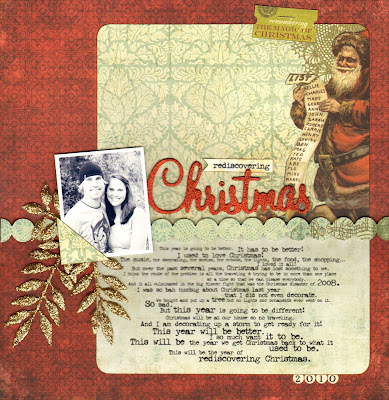
Over on the message board a couple of people had questions about how I did the typed journaling on this layout I made using the Bedford Falls kit.

Well it is not basic typed journaling that you would do in Word.
I actually used Photoshop!
So I thought I would hop over here and try to walk you through how I did it.
****
PREFACE...
I am very much a paper scrapper!
This journaling technique is about as close as I get to digital/hybrid scrapping.
That being said, these instructions are going to be very elementary!
And that is not because I am trying to talk down to you.
No way!!
I just don't know all the technical, fancy computer/Photoshop terms, etc. etc.
ha!
****
OK here goes...

{I am using Photoshop Elements}

Once you open Photoshop, go to

File > New > Blank File

Then a box pops up this is what I put in there:

“Preset” is Custom.

Then I make my “Width” 8.5 inches and “Height” 11 inches because that is what size my printer is going to print.

I have no idea what “Resolution” is but mine defaults to 72 pixels/inch so that is what I leave it on.

“Color Mode” defaults to RGB color and that is what I leave it on.

“Background contents” are white.

Now you have a blank canvas to work with!
Look for the “Horizontal type tool”.
It looks like a capital T.
For all you University of Tennessee fans, it looks like your T.
:)

With the “Horizontal type tool” you can pick the font, color, and size that you want.

You can also use it to drag your typing and move entire phrases/sentences/paragraphs around the page.

OK so click on the “Horizontal type tool”.

Then go click somewhere on your blank canvas.

Now what you have done is create “Layer 1”.
{the layers show up on the bottom right corner of my screen}

Try typing something. What you are typing is your “Layer 1”.

If you hit “Enter” you will create another layer: “Layer 2”.
And so forth.

So basically what I did on this layout is create a layer for each line of my journaling.

{I ended up with like 17-18 different layers. Each layer was a different sentence basically}

By doing that I can move each line around and change the size of the font.

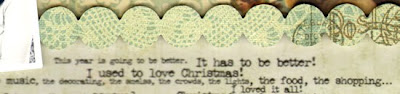
Take the first 3 lines of my journaling for example:

“This year is going to be better.”

“It has to be better!”
”I used to love Christmas!”

Each of these sentences is a separate layer.
You know how in Word everything is so evenly spaced like single or double-spaced??
Well by doing your journaling this way, you can move your sentences around to create as little or as much space as you want between your lines instead of having to stick with what the program makes you do.

It is fairly easy to move between layers to make edits and stuff.

All you need to do is click on the layer ("Layer 1", "Layer 2", etc) over on the right side (not actually on your canvas).

Once you click on the layer over on the right, you can go back to your canvas, click on that sentence and make edits.

It is almost like clicking on the layer over on the right brings to life that layer on the canvas and you can edit it.
If you have not clicked on a layer, then you cannot adjust it.


Then once you have all your journaling like you like it, you are ready to print it out!

Cut your patterned paper down to the size of your printer.

Feed it through your printer like you would regular printer paper and print away!!

Gosh, I hope I explained that process so it makes
some kind of sense!
My recommendation: play with it and experiment!
Get the hang of how your Photoshop works!
Let’s discuss!
I will start a thread on the message board if you have any questions or need me to explain something better!

Happy scrappin’!!

gretchen